
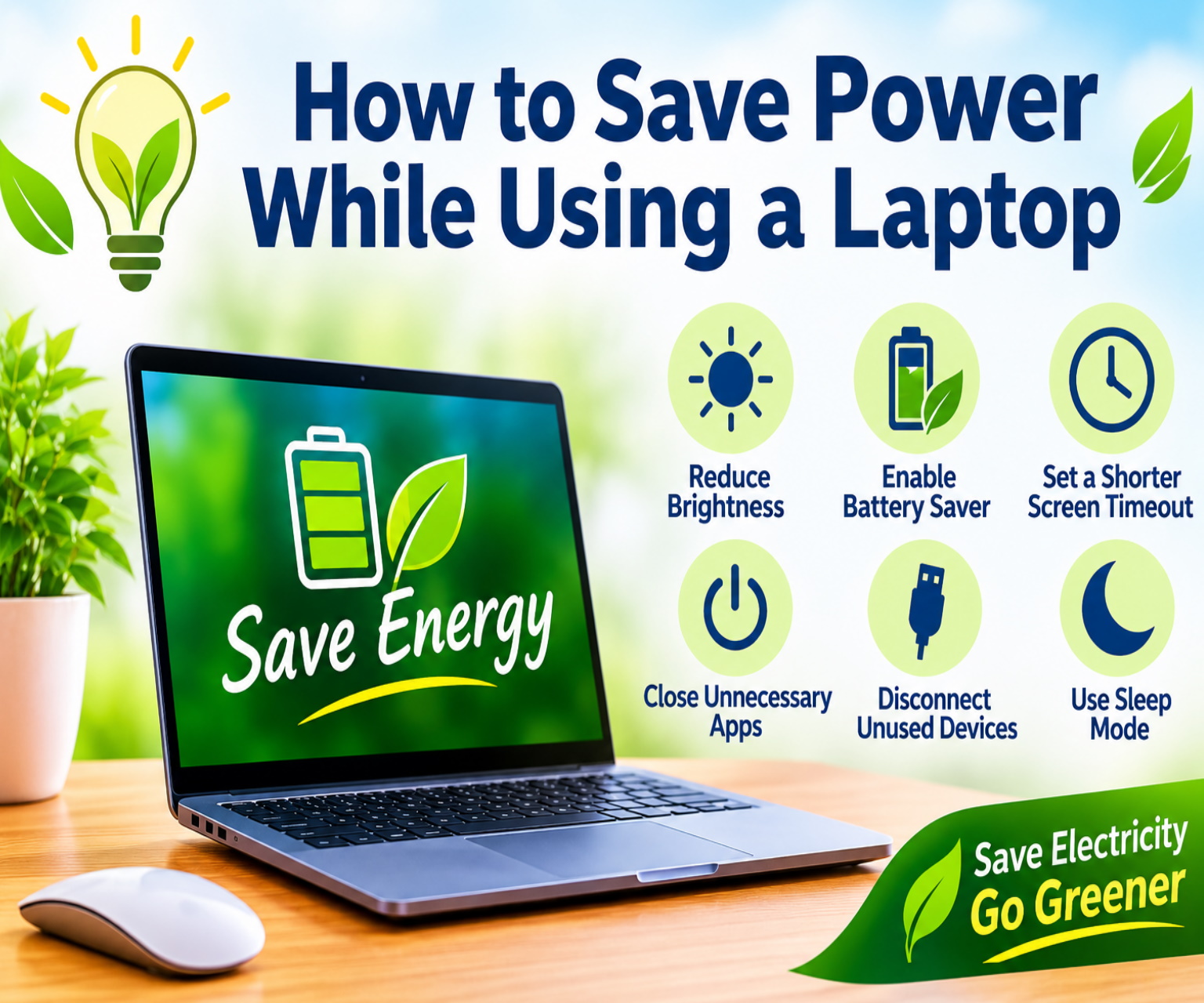
Blog for practical ways to save electricity while using a laptop. It covers Windows and Mac settings, battery life, charging habits, and energy-saving tips for home and office users.
How to Save Power While Using a Laptop: 15 Practical Tips to Reduce Energy Consumption
Laptops have become essential tools for work, education, communication, entertainment, and business. Although laptops generally consume less electricity than desktop computers, they still use power whenever they are running, charging, or connected to external devices.
The good news is that a few simple changes to your laptop settings and daily habits can help reduce electricity consumption, extend battery life, and improve overall efficiency.
Whether you use a Windows laptop or a MacBook, understanding how your device uses energy can help you make smarter decisions.
In this guide, we will explore practical ways to save power while using a laptop, reduce unnecessary electricity usage, and maintain good battery health.
1. Reduce Screen Brightness
The display is one of the components that can consume a significant amount of power, especially when brightness is set to a high level.
If your laptop screen is brighter than necessary, you may be using more energy than you need.
How to save power:
- Reduce brightness to a comfortable level.
- Lower brightness when working in a dim room.
- Avoid keeping the display at maximum brightness throughout the day.
- Enable automatic brightness adjustment if your laptop supports it.
On Windows, you can usually adjust brightness through Quick Settings or the Settings app.
On a MacBook, use the brightness keys or open System Settings and look for Displays.
The ideal brightness depends on your surroundings. Keep the screen comfortable to read without making it unnecessarily bright.
2. Enable Battery Saver or Low Power Mode
Most modern laptops include power-saving features designed to reduce energy consumption when the battery is running low or when maximum performance is unnecessary.
On Windows, Battery Saver or Energy Saver can limit background activity and reduce some power-intensive features.
On a MacBook, Low Power Mode can reduce energy usage by limiting certain background processes and performance demands.
To enable power-saving features:
Windows:
1. Open Settings.
2. Select System.
3. Open Power & battery.
4. Enable Energy Saver or Battery Saver, depending on your Windows version.
MacBook:
1. Open System Settings.
2. Select Battery.
3. Choose Low Power Mode if available.
These settings are especially useful for browsing, reading documents, attending online meetings, and performing other everyday tasks.
3. Set a Shorter Screen Timeout
Leaving your laptop screen on when you are not using it wastes energy.
For example, you might step away to answer a phone call or attend a meeting while your display remains active. If this happens repeatedly, unnecessary power consumption can add up.
Set your laptop to turn off the display after a short period of inactivity.
A practical starting point is:
- Screen off after 3–5 minutes of inactivity when running on battery.
- Screen off after 5–10 minutes when connected to power.
Adjust these intervals according to your work habits.
On Windows, open Settings, select System, then Power & battery, and look for Screen and sleep.
On macOS, open System Settings and look for Lock Screen or the relevant display and battery options.
Turning off the display does not necessarily shut down your applications. You can usually return to your work simply by moving the mouse or pressing a key.
4. Close Unnecessary Applications
Running many applications simultaneously can increase processor activity, memory usage, and background processing.
For example, you may have several browser windows, video-editing software, communication tools, music applications, and other programs open even when you are not using them.
Some applications continue running background tasks after you close their main window.
To reduce unnecessary power consumption:
- Close applications you no longer need.
- Quit programs that continue running in the background.
- Limit unnecessary startup applications.
- Review applications that consume unusually high amounts of energy.
- Avoid running demanding software when it is not required.
On Windows, Task Manager can help identify applications using significant CPU resources.
On a MacBook, Activity Monitor can show CPU activity and energy usage.
Do not close essential system processes or security software simply to save power.
5. Disconnect Unnecessary External Devices
External devices connected to a laptop may draw power from its battery or increase the energy used by the overall system.
Examples include:
- External hard drives
- USB accessories
- Portable lights
- USB-powered fans
- Unused adapters and hubs
- Some external displays
Disconnect devices when you are finished using them.
However, the savings depend on the type of accessory and how much power it consumes. A simple USB mouse may use very little energy, while an external display or powered storage device can require considerably more.
If you use your laptop with several peripherals throughout the day, switching off or disconnecting unnecessary equipment is a practical habit.
6. Use Sleep Mode When Taking Breaks
If you are stepping away from your laptop for a short period, Sleep mode can help reduce power consumption without requiring you to close all your applications.
Sleep mode keeps your work session available while placing the computer in a low-power state.
It is useful when you are:
- Taking a lunch break
- Attending a short meeting
- Moving between workspaces
- Pausing your work for a while
For longer periods when you do not need to access your laptop, shutting it down may be appropriate. Hibernate mode, where supported, saves the current session to storage while using very little power.
The best choice depends on your laptop, operating system, and how quickly you need to resume work.
7. Shut Down Your Laptop When You Are Finished
A laptop that remains switched on overnight may continue using electricity, even when you are not actively working.
Background updates, scheduled tasks, connected accessories, and other activities can contribute to energy use.
If you will not need your laptop for several hours, consider shutting it down.
This is particularly useful when:
- You have finished work for the day.
- You are going away for an extended period.
- You will not need background applications.
- You want to avoid accidental overnight activity.
Modern laptops are designed to manage power efficiently, so shutting down after every very short break is not necessary. Choose the option that suits your usage pattern.
8. Choose an Efficient Power Mode
Most laptops offer different power modes to balance performance and energy consumption.
A high-performance mode may allow the processor and other components to use more power to complete demanding tasks quickly.
A balanced or energy-efficient mode can reduce power usage when maximum performance is unnecessary.
For everyday activities such as writing emails, browsing websites, preparing documents, and attending online meetings, an efficient power mode is often sufficient.
For video editing, software compilation, gaming, or other demanding work, you may need a higher-performance setting.
The key is to match the power mode to your current task rather than using maximum performance all the time.
9. Optimize Browser Usage
Web browsers are essential for work and entertainment, but some websites and browser tabs can consume considerable system resources.
Video streaming, animated websites, online games, and browser-based applications can increase CPU or GPU activity.
Try these practices:
- Close tabs that you no longer need.
- Disable unnecessary browser extensions.
- Use built-in memory-saving or energy-saving features when available.
- Avoid autoplaying videos when they are not needed.
- Pause video or audio playback when you are away.
- Keep your browser updated.
You do not need to close every tab. Focus on the ones that are inactive or using significant resources.
Browser efficiency can make a noticeable difference when you spend many hours working online.
10. Reduce Unnecessary Video and Graphics Activity
Video playback, gaming, 3D applications, and high-refresh-rate displays can increase laptop power consumption.
If you are working on documents or reading, you may not need the same graphics performance required for gaming or video production.
To save power:
- Pause videos when not watching them.
- Reduce the display refresh rate if a lower setting is suitable.
- Avoid running graphics-intensive applications unnecessarily.
- Use lower video quality when high resolution is not required.
- Turn off unnecessary visual effects if your operating system offers that option.
For example, watching a video at a lower resolution can reduce data usage and may reduce system workload, depending on the device and playback conditions.
Keep the settings that support your comfort and productivity. Power savings should not come at the expense of necessary work.
11. Manage Wi-Fi and Bluetooth Wisely
Wireless connections require power, although their contribution varies by device and usage.
Wi-Fi is usually necessary for everyday work, while Bluetooth may be used for wireless headphones, keyboards, mice, and other accessories.
To avoid unnecessary usage:
- Turn off Bluetooth when you are not using Bluetooth devices.
- Disconnect unused wireless accessories.
- Avoid repeatedly searching for devices you do not need.
- Use Airplane mode when you genuinely do not need any wireless connection.
Do not disable Wi-Fi if you need internet access for work or communication. The energy savings from turning off an idle wireless connection may be modest, so prioritize convenience and productivity.
12. Keep Your Laptop Cool
A laptop that becomes excessively hot may run its cooling fans more frequently and can reduce performance to manage temperatures.
Heat can also affect battery health over time.
To support efficient operation:
- Use your laptop on a hard, flat surface.
- Keep air vents clear.
- Clean dust from vents when appropriate.
- Avoid using the laptop on blankets or pillows that block airflow.
- Keep it away from direct sunlight and other heat sources.
- Use a suitable cooling surface if your environment requires one.
A cooling pad may help in some situations, but it also consumes power if it has powered fans.
Good ventilation and sensible operating conditions are usually the first steps.
13. Follow Good Battery-Charging Practices
Battery health and electricity consumption are related, but they are not the same thing. Good charging habits help maintain battery performance and may reduce the need for premature replacement.
Modern laptops generally manage charging automatically.
For lithium-ion batteries, excessive heat and spending prolonged periods at very high charge levels can contribute to battery ageing. Many laptops provide battery health or optimized charging features to help manage this.
Useful practices include:
- Enable optimized charging or battery health features if available.
- Avoid exposing your laptop to high temperatures.
- Use a compatible charger that meets the manufacturer's requirements.
- Replace a damaged charger or battery through an appropriate service provider.
- Avoid repeatedly running the battery completely flat.
You do not need to unplug the charger the moment the battery reaches 100% on every modern laptop. Built-in charging controls manage this process, although battery health features can be beneficial for laptops that remain plugged in most of the time.
14. Use the Right Charger and Power Accessories
Using a compatible charger helps your laptop operate safely and as intended.
Choose the charger recommended by the manufacturer or a reputable compatible charger that meets the required voltage, power, and charging standards.
An undersized charger may not supply enough power for demanding tasks, while an unsuitable or low-quality charger can create safety risks.
If your laptop supports USB-C Power Delivery, a compatible USB-C charger may be suitable, provided it meets the device's power requirements.
Also consider the electricity used by accessories such as external monitors, docking stations, speakers, and printers. Turning off equipment that is not needed can reduce total workspace energy consumption.
15. Choose Energy-Efficient Hardware for Long-Term Savings
If you are buying a new laptop, energy efficiency is worth considering alongside price, performance, screen size, and battery life.
Different laptop models can use different amounts of electricity depending on their processors, displays, graphics systems, cooling designs, and workloads.
When comparing laptops, consider:
- Battery life under realistic usage conditions
- Processor efficiency
- Display size and technology
- Energy-efficiency information provided by the manufacturer
- Power requirements for the included charger
- Repairability and expected product lifespan
A laptop with longer battery life may reduce how often you need to charge it, but battery-life claims are not a direct measurement of electricity consumed from the wall.
For a meaningful comparison, look for independent efficiency tests or measured power consumption under similar workloads.
Keeping a reliable laptop for longer, when it continues to meet your needs, can also reduce electronic waste.
How Much Electricity Can You Save?
The amount of electricity you save depends on your laptop's power consumption, operating time, battery condition, and the settings you change.
You can estimate energy use with this simple formula:
Electricity used in kilowatt-hours (kWh) = Power in watts × Hours used ÷ 1,000
For example, suppose a laptop and its power supply draw an average of 40 watts from the wall while you work for 8 hours.
Energy used:
40 × 8 ÷ 1,000 = 0.32 kWh
If you reduce average power draw to 30 watts over the same 8-hour period, energy use becomes:
30 × 8 ÷ 1,000 = 0.24 kWh
In this example, the saving is 0.08 kWh per day.
These figures are illustrative, not a prediction for every laptop. Actual consumption can be higher or lower depending on the workload, display brightness, charger efficiency, peripherals, and power settings.
To estimate your own savings, measure your laptop's actual power draw with a suitable power meter or use reliable device-specific measurements.
Common Laptop Power-Saving Myths
Myth 1: Every laptop must be shut down after every use
Not necessarily. Sleep mode is designed for short breaks, while shutdown is useful for longer periods. Choose based on your needs.
Myth 2: Keeping a laptop plugged in always wastes electricity
Modern laptops manage charging automatically. The amount of electricity used depends on the device's activity, charging system, and connected accessories.
Myth 3: Closing every application always saves a large amount of power
The benefit depends on the application. Closing a demanding background process can help considerably, while closing an idle application may produce only a small difference.
Myth 4: Battery Saver makes every laptop dramatically more efficient
Power-saving features can reduce energy use, but the amount depends on what the laptop is doing and which settings are changed.
Myth 5: A laptop consumes no electricity when it is switched off
A fully shut-down laptop may still draw a small amount of standby power while connected to a charger, depending on the device. Unplugging equipment that will not be used for an extended period can reduce this standby consumption, though the savings are usually modest.
A Simple Daily Laptop Power-Saving Checklist
Use this quick checklist to build energy-efficient habits.
- Reduce screen brightness to a comfortable level.
- Enable Battery Saver, Energy Saver, or Low Power Mode when appropriate.
- Set a shorter screen timeout.
- Close unnecessary high-usage applications.
- Disconnect unused external devices.
- Use Sleep mode during short breaks.
- Shut down the laptop when finished for the day if appropriate.
- Choose a balanced or efficient power mode.
- Keep air vents clear.
- Use optimized battery charging features when available.
- Turn off accessories that are not needed.
- Keep your operating system and applications updated.
You do not need to change every setting at once. Start with brightness, screen timeout, and power mode, then adjust other settings according to your usage.
Conclusion
Saving power while using a laptop does not require expensive equipment or complicated technical knowledge. Small changes, such as lowering screen brightness, enabling energy-saving settings, closing demanding background applications, and switching off unused accessories, can help reduce unnecessary electricity consumption.
Good ventilation, sensible charging habits, and efficient hardware choices can also support long-term performance and battery health.
The most effective approach is to combine several practical habits and adapt them to your daily work. By using your laptop efficiently, you can make better use of its battery, reduce avoidable energy consumption, and contribute to more responsible technology use.



0 comments
Be the first to add a thoughtful comment.
Leave a comment
Your email will not be published. Comments are moderated.